command prompt logo command prompt

Workshop setup

Get your laptop ready before the Agentic Coding Workshop. Pick your operating system and work down the list — it takes about 20–30 minutes. No coding experience needed.

Before you begin

  • Set aside about 20–30 minutes and a stable internet connection.
  • Make sure you have roughly 5–10 GB of free disk space.
  • The essential tools are Git, Node.js 24 with npm, VS Code, the Codex VS Code extension, and Codex (the desktop app on Windows/macOS).
  • You do not need a ChatGPT or OpenAI account. We will give you an API key on the day to sign in to Codex.
  • Stuck on any step? Email e.morgan@ed.ac.uk and we can book a short call to help you get set up.

1. Choose your operating system

Select your operating system above to see step-by-step instructions.

Windows setup

You will need PowerShell to run the commands below. Open it by searching the Start menu for PowerShell.

Git

Done ✓

Step 1 — check whether it's already installed and up to date

git --version

Expected output git version 2.45.2

Any 2.x version is fine. If you see 'not recognized', install it below.

Node.js

Done ✓

Step 1 — check whether it's already installed and up to date

node --version

Expected output v24.4.1

It must start with v24 (the current LTS). If it's missing, or shows v18 / v20 / v22, install or update below. npm comes bundled with Node.

VS Code

Done ✓

You just need the VS Code desktop app installed — no terminal setup required.

Please note: if you're using a University-managed Windows laptop then you should be able to install VS Code from the Software Center. Otherwise, follow the instructions below.

  1. Download VS Code:
  2. Run the installer and accept the defaults.
  3. Open VS Code to confirm it launches.

Codex VS Code extension

Done ✓

Install the Codex extension so you can use Codex inside VS Code during the workshop.

  1. Open VS Code.
  2. Open the Extensions view (Ctrl+Shift+X), search “Codex”, and install the one published by OpenAI.
  3. After installation, look for the Codex icon in the sidebar. In VS Code it may appear on the right-hand side of the window rather than the left activity bar.
  4. If you cannot see it, open the Command Palette (Ctrl+Shift+P), type Codex: Open Codex Sidebar, and run that command.
  5. If Codex still does not appear, close and reopen VS Code, then try the Command Palette step again. You only need to check that the Codex panel opens; you do not need to sign in before the workshop.
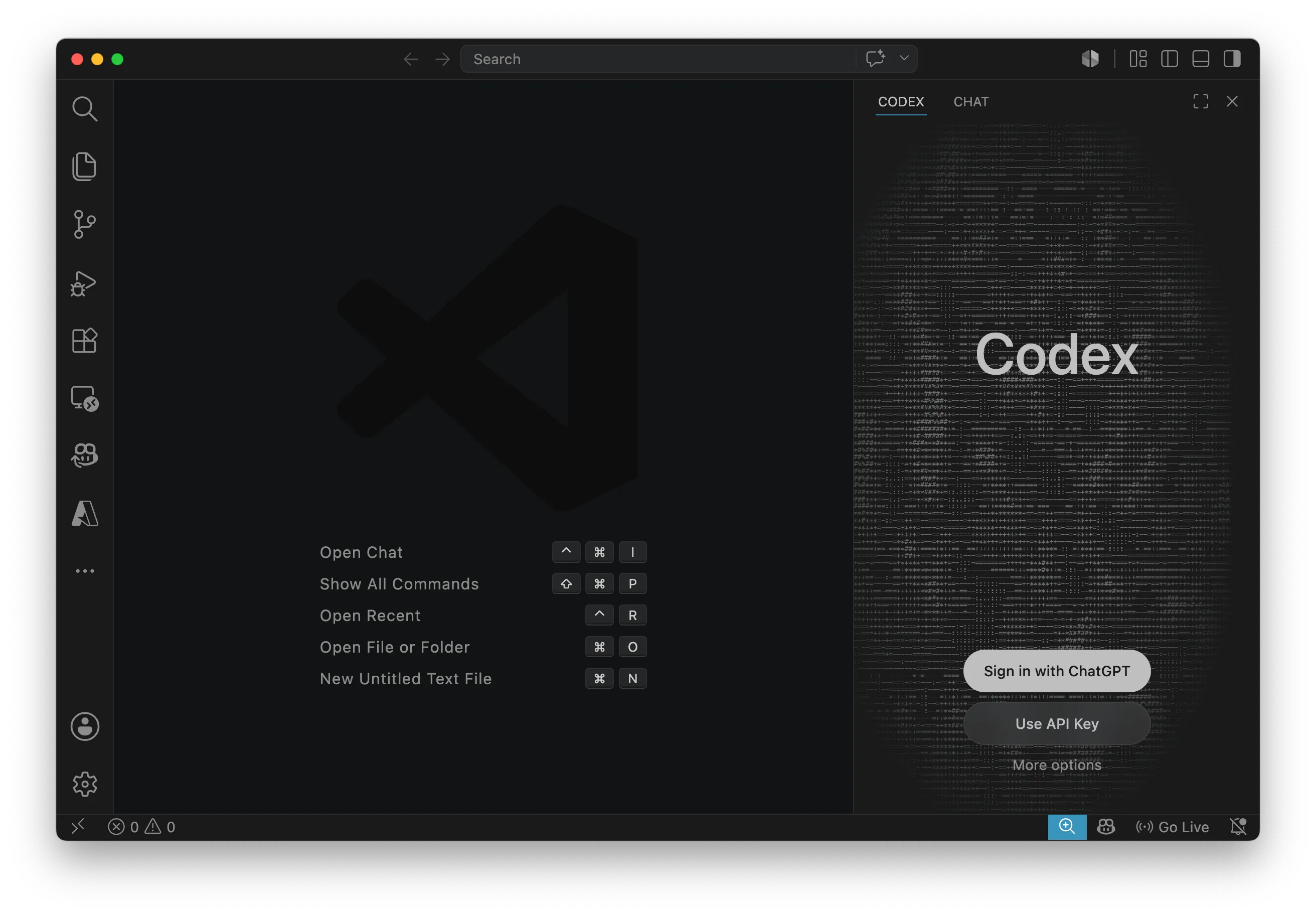
VS Code with the Codex sidebar panel open on the right-hand side.
The Codex panel open in VS Code, shown on the right-hand side of the window.

Codex desktop app

Done ✓

Codex is the AI coding agent we'll use. On Windows it runs natively — you do not need WSL.

  1. Open the official Codex for Windows download instructions:
  2. Follow the Windows instructions on that page to install the Codex app.
  3. Once installed, open Codex from the Start menu to check that it launches.

Don't worry about signing in yet. We will provide an API key for you to sign in to Codex on the day of the workshop.

Set your Git identity

Done ✓

Step 1 — check whether your name and email are already set

git config --global user.name

Expected output Ada Lovelace

git config --global user.email

Expected output ada@ed.ac.uk

Both of these should print your details. If either is blank, click “Set name and email” below to set them — they're required so your work can be pushed to GitLab.

Sign in to GitLab and request access

Done ✓

We use the University's GitLab to share workshop code.

  1. Go to git.ecdf.ed.ac.uk and sign in with your University credentials. Use your UUN as the username, not UUN@ed.ac.uk. Check you reach your GitLab dashboard.
  2. Open the workshop group:
  3. Near the top of the group page, by the group name, click “Request Access”.
  4. You'll see that your request is pending. An organiser will approve it and you'll get an email — nothing more to do.

Add an SSH key to GitLab

Done ✓

An SSH key lets Git and Codex connect to GitLab without asking for your username and password each time you push or pull.

  1. Check whether you already have a public SSH key:
    Get-ChildItem "$env:USERPROFILE\.ssh\*.pub"

    If this lists a .pub file, you can use that key. If it says the path cannot be found, generate one in the next step.

    Expected output id_ed25519.pub

  2. If the check above did not list a key, generate one in PowerShell:
    ssh-keygen -t ed25519 -C "ada@ed.ac.uk"

    Replace ada@ed.ac.uk with your University email. Press Enter to accept the default file location, then press Enter twice to use no passphrase for this workshop.

    Expected output Generating public/private ed25519 key pair.

  3. Copy your public key:
    Get-Content "$env:USERPROFILE\.ssh\id_ed25519.pub" | Set-Clipboard

    If the check showed a different .pub file, replace id_ed25519.pub with that filename.

    Expected output (no output — it copies the key)

  4. In GitLab, click your profile image, then open Preferences (or Edit profile if that is what you see).
  5. On the Preferences page, look for User settings in the left side panel. Open Access > SSH keys, then click Add new key.
  6. Paste the key, set the title to something like Workshop laptop, and save it.
  7. Check the connection:
    ssh -T git@git.ecdf.ed.ac.uk

    The first time you connect, type yes if SSH asks whether to trust the GitLab host.

    Expected output Welcome to GitLab, @uun!

macOS setup

You will need Terminal to run the commands below. Open it with Cmd+Space, type Terminal, then press Enter.

Git

Done ✓

Step 1 — check whether it's already installed and up to date

git --version

Expected output git version 2.39.5 (Apple Git-154)

Any 2.x version is fine. If a popup offers to install developer tools, that's how you get Git — see below.

Node.js

Done ✓

Step 1 — check whether it's already installed and up to date

node --version

Expected output v24.4.1

It must start with v24 (the current LTS). If it's missing, or shows v18 / v20 / v22, install or update below. npm comes bundled with Node.

VS Code

Done ✓

You just need the VS Code desktop app installed — no terminal setup required.

  1. Download from VS Code (choose Mac) — it downloads a .zip:
  2. Open the downloaded file, then drag Visual Studio Code into your Applications folder.
  3. Open VS Code to confirm it launches.

Codex VS Code extension

Done ✓

Install the Codex extension so you can use Codex inside VS Code during the workshop.

  1. Open VS Code.
  2. Open the Extensions view (Cmd+Shift+X), search “Codex”, and install the one published by OpenAI.
  3. After installation, look for the Codex icon in the sidebar. In VS Code it may appear on the right-hand side of the window rather than the left activity bar.
  4. If you cannot see it, open the Command Palette (Cmd+Shift+P), type Codex: Open Codex Sidebar, and run that command.
  5. If Codex still does not appear, close and reopen VS Code, then try the Command Palette step again. You only need to check that the Codex panel opens; you do not need to sign in before the workshop.
VS Code with the Codex sidebar panel open on the right-hand side.
The Codex panel open in VS Code, shown on the right-hand side of the window.

Codex desktop app

Done ✓

Codex is the AI coding agent we'll use.

  1. Download the macOS app:
  2. Open the downloaded .dmg and drag Codex into your Applications folder. (Requires macOS 12 or newer.)
  3. Open Codex from Applications (or Spotlight: Cmd+Space, type “Codex”) to check that it launches.

Don't worry about signing in yet. We will provide an API key for you to sign in to Codex on the day of the workshop.

Set your Git identity

Done ✓

Step 1 — check whether your name and email are already set

git config --global user.name

Expected output Ada Lovelace

git config --global user.email

Expected output ada@ed.ac.uk

Both of these should print your details. If either is blank, click “Set name and email” below to set them — they're required so your work can be pushed to GitLab.

Sign in to GitLab and request access

Done ✓

We use the University's GitLab to share workshop code.

  1. Go to git.ecdf.ed.ac.uk and sign in with your University credentials. Use your UUN as the username, not UUN@ed.ac.uk — this is the same as EASE, not the Office 365 email-style login. Check you reach your GitLab dashboard.
  2. Open the workshop group:
  3. Near the top of the group page, by the group name, click “Request Access”.
  4. You'll see that your request is pending. An organiser will approve it and you'll get an email — nothing more to do.

Add an SSH key to GitLab

Done ✓

An SSH key lets Git and Codex connect to GitLab without asking for your username and password each time you push or pull.

  1. Check whether you already have a public SSH key:
    ls ~/.ssh/*.pub

    If this lists a .pub file, you can use that key. If it says 'No such file or directory', generate one in the next step.

    Expected output id_ed25519.pub

  2. If the check above did not list a key, generate one in Terminal:
    ssh-keygen -t ed25519 -C "ada@ed.ac.uk"

    Replace ada@ed.ac.uk with your University email. Press Enter to accept the default file location, then press Enter twice to use no passphrase for this workshop.

    Expected output Generating public/private ed25519 key pair.

  3. Copy your public key:
    pbcopy < ~/.ssh/id_ed25519.pub

    If the check showed a different .pub file, replace id_ed25519.pub with that filename.

    Expected output (no output — it copies the key)

  4. In GitLab, click your profile image, then open Preferences (or Edit profile if that is what you see).
  5. On the Preferences page, look for User settings in the left side panel. Open Access > SSH keys, then click Add new key.
  6. Paste the key, set the title to something like Workshop laptop, and save it.
  7. Check the connection:
    ssh -T git@git.ecdf.ed.ac.uk

    The first time you connect, type yes if SSH asks whether to trust the GitLab host.

    Expected output Welcome to GitLab, @uun!

Linux setup

You will need your usual terminal to run the commands below. Open Terminal from your app menu; on many distributions Ctrl+Alt+T opens it too.

These commands are for Debian / Ubuntu. On other distributions, use your own package manager where shown.

Git

Done ✓

Step 1 — check whether it's already installed and up to date

git --version

Expected output git version 2.43.0

Any 2.x version is fine. If it's missing, install it below.

Node.js

Done ✓

Step 1 — check whether it's already installed and up to date

node --version

Expected output v24.4.1

It must start with v24 (the current LTS). If it's missing, or shows v18 / v20 / v22, install or update below. npm comes bundled with Node.

VS Code

Done ✓

You just need the VS Code desktop app installed.

  1. Download the .deb package (Debian / Ubuntu):
  2. Install it from your Downloads folder:
    sudo apt install ./code_*.deb

    If it downloaded elsewhere, cd into that folder first.

    Expected output ... Setting up code ...

  3. Open VS Code to confirm it launches.

On Fedora / openSUSE, download the .rpm and install it with your package manager instead.

Codex (VS Code extension)

Done ✓

On Linux there's no Codex desktop app, so we use the Codex VS Code extension instead.

  1. Open VS Code.
  2. Open the Extensions view — click the squares icon in the left sidebar, or press Ctrl+Shift+X.
  3. Search for “Codex” and install the one published by OpenAI.
  4. After installation, look for the Codex icon in the sidebar. In VS Code it may appear on the right-hand side of the window rather than the left activity bar.
  5. If you cannot see it, open the Command Palette (Ctrl+Shift+P), type Codex: Open Codex Sidebar, and run that command.
  6. If Codex still does not appear, close and reopen VS Code, then try the Command Palette step again. You only need to check that the Codex panel opens.
VS Code with the Codex sidebar panel open on the right-hand side.
The Codex panel open in VS Code, shown on the right-hand side of the window.

Don't worry about signing in yet. We will provide an API key for you to sign in to Codex on the day of the workshop.

Set your Git identity

Done ✓

Step 1 — check whether your name and email are already set

git config --global user.name

Expected output Ada Lovelace

git config --global user.email

Expected output ada@ed.ac.uk

Both of these should print your details. If either is blank, click “Set name and email” below to set them — they're required so your work can be pushed to GitLab.

Sign in to GitLab and request access

Done ✓

We use the University's GitLab to share workshop code.

  1. Go to git.ecdf.ed.ac.uk and sign in with your University credentials. Use your UUN as the username, not UUN@ed.ac.uk — this is the same as EASE, not the Office 365 email-style login. Check you reach your GitLab dashboard.
  2. Open the workshop group:
  3. Near the top of the group page, by the group name, click “Request Access”.
  4. You'll see that your request is pending. An organiser will approve it and you'll get an email — nothing more to do.

Add an SSH key to GitLab

Done ✓

An SSH key lets Git and Codex connect to GitLab without asking for your username and password each time you push or pull.

  1. Check whether you already have a public SSH key:
    ls ~/.ssh/*.pub

    If this lists a .pub file, you can use that key. If it says 'No such file or directory', generate one in the next step.

    Expected output id_ed25519.pub

  2. If the check above did not list a key, generate one in your terminal:
    ssh-keygen -t ed25519 -C "ada@ed.ac.uk"

    Replace ada@ed.ac.uk with your University email. Press Enter to accept the default file location, then press Enter twice to use no passphrase for this workshop.

    Expected output Generating public/private ed25519 key pair.

  3. Show your public key:
    cat ~/.ssh/id_ed25519.pub

    If the check showed a different .pub file, replace id_ed25519.pub with that filename. Copy the full line, starting with ssh-ed25519.

    Expected output ssh-ed25519 AAAA... ada@ed.ac.uk

  4. In GitLab, click your profile image, then open Preferences (or Edit profile if that is what you see).
  5. On the Preferences page, look for User settings in the left side panel. Open Access > SSH keys, then click Add new key.
  6. Paste the key, set the title to something like Workshop laptop, and save it.
  7. Check the connection:
    ssh -T git@git.ecdf.ed.ac.uk

    The first time you connect, type yes if SSH asks whether to trust the GitLab host.

    Expected output Welcome to GitLab, @uun!

Optional extras Docker sandboxes — skip this if you're not sure. Click to expand.

Docker sandboxes

Optional Done ✓

Step 1 — check whether the sandbox tool is installed

sbx version

Expected output sbx version 0.x.x

Lets Codex run inside an isolated microVM sandbox, so it can't touch the rest of your computer. You don't need Docker Desktop — just the small “sbx” tool and a free Docker account.

Docker sandboxes

Optional Done ✓

Step 1 — check whether the sandbox tool is installed

sbx version

Expected output sbx version 0.x.x

Lets Codex run inside an isolated microVM sandbox, so it can't touch the rest of your computer. You don't need Docker Desktop — just the small “sbx” tool and a free Docker account.

Docker sandboxes

Optional Done ✓

Step 1 — check whether the sandbox tool is installed

sbx version

Expected output sbx version 0.x.x

Lets Codex run inside an isolated microVM sandbox, so it can't touch the rest of your computer. You don't need Docker Desktop — just the “sbx” tool and a free Docker account. Your machine needs KVM virtualisation.

You're all set 🎉

Before the workshop, you should be able to tick off all of these:

  • git --version shows a 2.x version.
  • node --version shows v24, and npm --version shows a number.
  • VS Code opens.
  • The Codex VS Code extension is installed and the Codex panel opens in VS Code.
  • On Windows/macOS, the Codex desktop app opens.
  • Your Git name and email are set (git config --global user.name prints your name).
  • You can sign in to git.ecdf.ed.ac.uk and you've requested access to the workshop group.
  • ssh -T git@git.ecdf.ed.ac.uk shows a GitLab welcome message.